4-Direction Walk Cycle: Frame Rate and Alignment Guide
· 8 min read · Loopixel team
Frames from a real Loopixel 4-direction sheet; Godot import tested on 4.7.2
A top-down or isometric character needs to face four ways, and each way is a walk loop. Two things decide whether it looks right: how fast the 8 frames play compared with how fast the character moves, and whether the feet sit on the same line in every direction. Both are easy to get wrong and easy to fix once you know the numbers.
On this page · 6
Choosing 8, 10 or 12 fps for an 8-frame walk
In a classic hand-drawn cycle, an 8-frame walk is two steps: frames 1 to 4 are one foot, frames 5 to 8 the other (see the pixel art walk cycle guide for the contact, down, passing and up poses). The frame rate only changes how long the full two-step loop takes.
- #10 ms
- #2100 ms
- #3200 ms
- #4300 ms
- #5400 ms
- #6500 ms
- #7600 ms
- #8700 ms
The 8 frames of one direction, cut from a real Loopixel 4-direction sheet (64 px, right-facing row), with each frame’s start time at 10 fps.
| Frame rate | Frame time | Loop length | Feel |
|---|---|---|---|
| 8 fps | 125 ms | 1.00 s | Slow, deliberate. Fits a heavy character or a calm pace. |
| 10 fps | 100 ms | 0.80 s | A normal walking pace and the Loopixel default. |
| 12 fps | 83 ms | 0.67 s | Brisk, almost a jog. Fits a fast walk or a small character. |
The same 8 frames looping at 8, 10 and 12 fps side by side. Use the Pause button to stop them. Only the timing changes.
Nothing here is a rule from an engine; it is how the timing reads on screen. A useful test: a person at a relaxed pace takes about two steps per second, which is one full 8-frame loop every second, so 8 fps looks natural for a realistic stride and 10 or 12 fps looks lively. If your game feels sluggish, raise the move speed and the fps together instead of only one.
Stop the feet sliding
Foot sliding means the ground moves at a different speed than the foot that is planted. In one 8-frame loop the character advances exactly one stride (two steps). So:
move speed (px/s) = stride length (px) × fps ÷ 8
- Measure the stride in the art: the distance the character should travel in one 8-frame loop. For example, 48 px on a 64 px sprite.
- Multiply by the fps and divide by 8. At 10 fps that is 48 × 10 ÷ 8 = 60 px/s. At 8 fps it is 48 px/s, at 12 fps 72 px/s.
- Set the character’s movement to that speed, then watch a planted foot against a detailed floor tile. If the foot drifts forward, lower the speed; if it drags backward, raise it.
- If you want a different speed, change the fps rather than the stride, and re-run the formula.
Move whole pixels per frame where you can. A speed of 60 px/s at 60 game ticks per second is exactly 1 px per tick, which avoids the half-pixel positions that cause shimmer (see the blurry sprite guide).
Align the four directions
When the character turns, nothing should jump. That needs a shared baseline and a shared centre across all four rows.
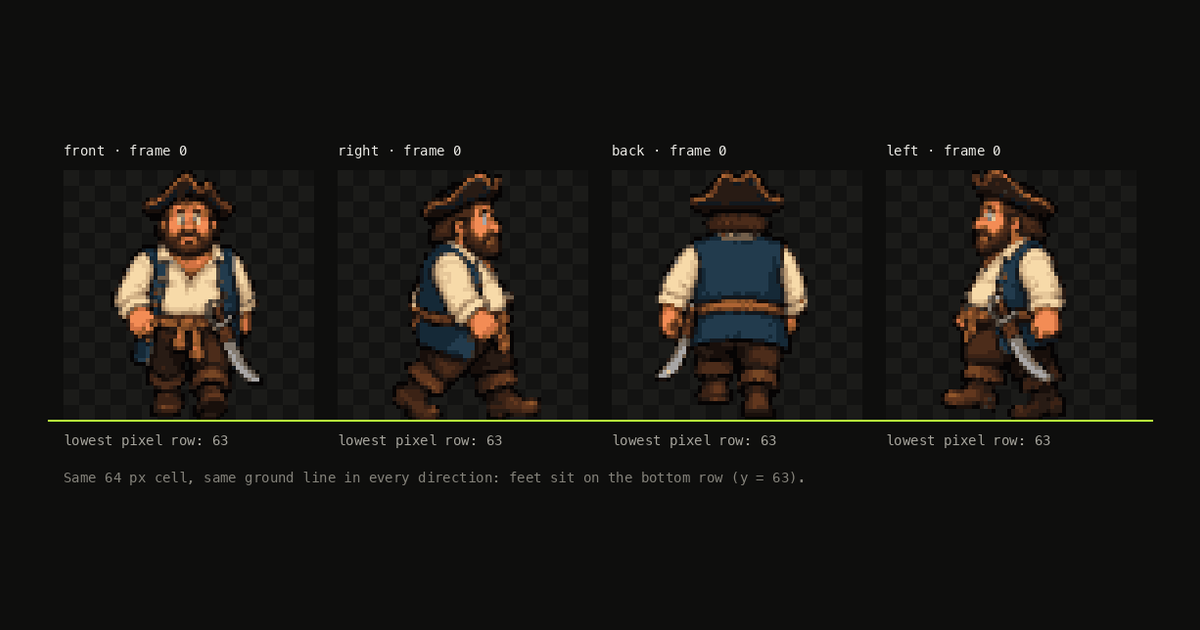
- Feet on one line: the lowest foot pixel should sit on the same row in every direction. Check front, right, back and left at one frame size.
- Same horizontal centre: the body’s centre line should land in the middle of the cell, not drift left in the right-facing row.
- Same cell size: every Loopixel frame is the same square size with no trimming, so a cell never changes size between directions.
- One pivot: set the pivot at the feet (bottom centre of the cell), not the middle of the sprite, for every direction.
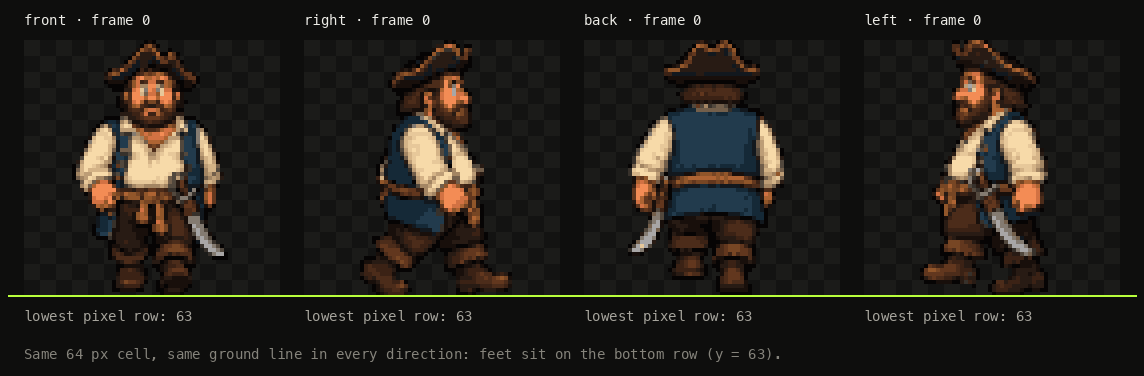
To check, stack the first frame of each direction on top of each other in an image editor and draw a horizontal line at the feet. If one direction sits two pixels higher, shift that row’s frames in Aseprite (or nudge that animation’s offset in the engine) rather than the whole project.
Row order and switching by direction
A Loopixel 4-direction sheet is 4 rows × 8 frames, so the sheet is 8 × frame size wide and 4 × frame size tall. Rows from the top: front, right, back, left. Name your animations the same way and switch on the facing direction.
| Row (top to bottom) | Direction | Godot animation name | Unity sprites (reading order) |
|---|---|---|---|
| 1 | Front (down) | walk_front | 1st to 8th |
| 2 | Right | walk_right | 9th to 16th |
| 3 | Back (up) | walk_back | 17th to 24th |
| 4 | Left | walk_left | 25th to 32nd |
Godot 4
- Add an
AnimatedSprite2D, create a SpriteFrames and choose “Add frames from a Sprite Sheet”. - Set Horizontal to 8 and Vertical to 4. Select the 8 frames of one row, add them, and name the animation (for example walk_front). Repeat for each row.
- Set Speed (FPS) for each animation. The Godot tutorial changes it to 10 for a walking loop; use your fps from the table above.
- In code, pick the animation from the facing vector and call
play("walk_right")and so on. The node also hasspeed_scaleif you want to speed one animation up without editing it. - For the pivot, the
AnimatedSprite2DhasCenteredandOffsetproperties. To put the origin at the feet, keep Centered on and set Offset to (0, −half the frame height), for example (0, −32) for 64 px frames.
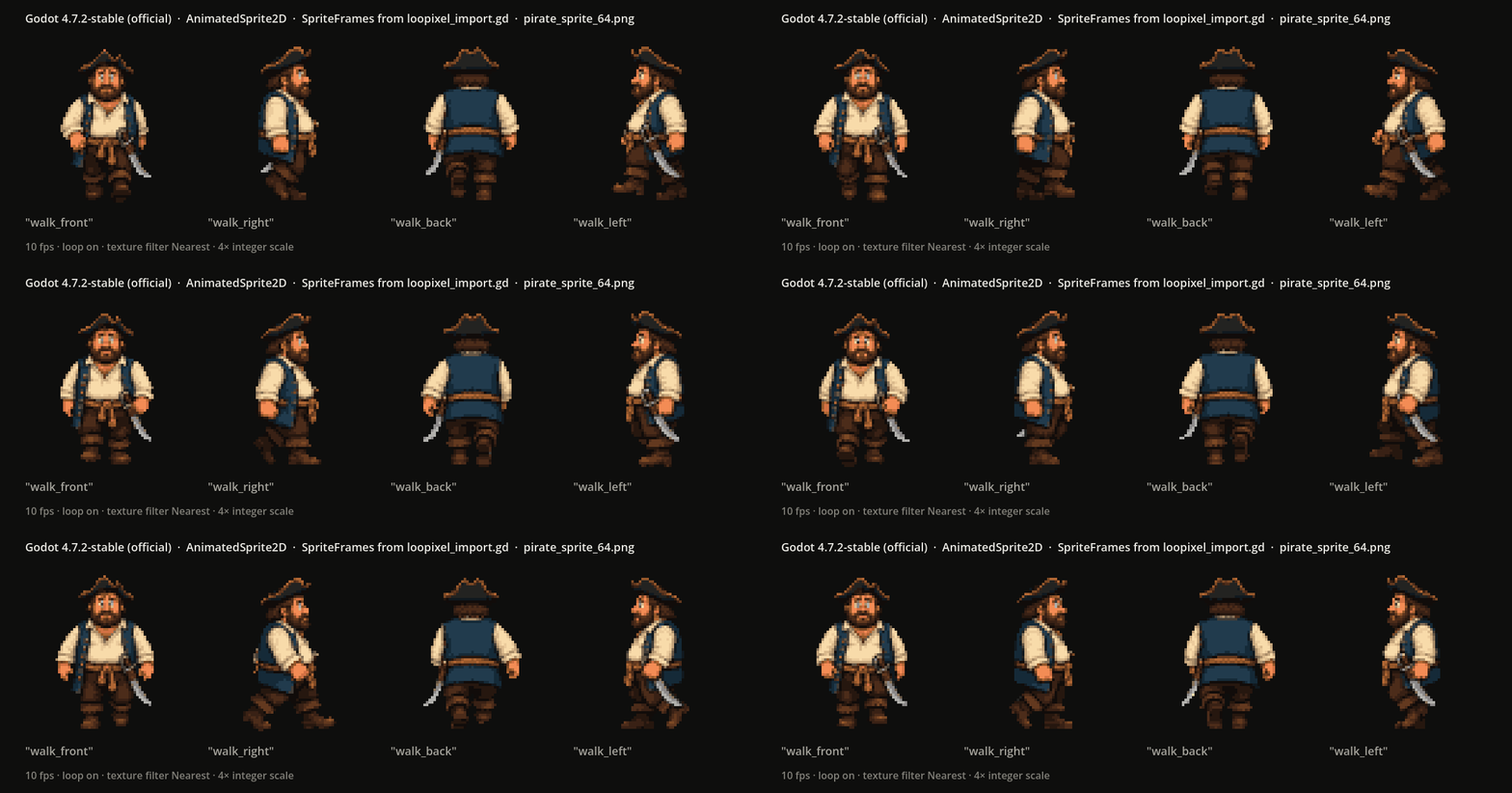
The open-source import script on the Godot sprite sheet guide builds walk_front, walk_right, walk_back and walk_left for you at 10 fps.
Unity
- Slice the 4-row sheet with Grid By Cell Size as shown in the Unity sprite sheet guide. You get 32 sprites in reading order, 8 per row.
- Create one animation clip per direction and put that row’s 8 sprites in it. Set the clip’s frame rate to match your chosen fps (Unity exposes it as
AnimationClip.frameRate). - Drive the clips from an Animator with a direction parameter, or play the clip for the current facing from a script.
Aseprite
Import the sheet with File > Import Sprite Sheet using the frame size, and set the frame durations to match: 100 ms per frame is 10 fps, 125 ms is 8 fps and about 83 ms is 12 fps. The Aseprite docs describe changing the duration of a specific frame; see the Aseprite sprite sheet guide for the import.
What a Loopixel 4-direction sheet gives you
One image in, four walk loops out: the 4-direction sprite sheet generator returns front, right, back and left rows of 8 frames each, all generated from the same still, so proportions and palette match across directions. Frames are square with no padding, offset or trimming, in five sizes (32, 48, 64, 96, 128 px) in every ZIP, so a cell never changes size when the character turns. The atlas lists 100 ms per frame, and the open-source import script for Godot names the four animations for you. All 4 directions cost 1 credit, the same as one direction; see pricing and the facts page.
Good to know: sheets play at 10 fps, so other speeds are a setting in your engine or editor, as above. Four directions means walk cycles; other actions are single-direction. The pivot, move speed and animation switching are set in your engine, and a generated loop can have a frame worth tidying in Aseprite.
Quick answers
Which frame rate should I choose?
Start at 10 fps, then adjust until the planted foot stops sliding at your real move speed. If the character looks too slow at your gameplay speed, try 12 fps.
Why does my character jump when it turns?
Usually the pivot or the feet baseline differs between directions. Use one pivot at the feet and compare the four rows on a shared guide line.
Do I need all four directions to be mirrored?
Not necessarily. Left and right can be mirrors in some games, but a character with an item on one side looks different when mirrored. The sheet gives you separate left and right rows, so you can choose.
Sources
Engine menu paths and property names above were checked against the official documentation:
- Godot: 2D sprite animation
- Godot: AnimatedSprite2D class reference
- Unity: Sprite (2D and UI) texture Import Settings
- Unity: AnimationClip.frameRate
- Unity: Create a new Animation Clip
- Aseprite: Animation
Try it with one image
Upload one image and get an 8-frame pixel sprite sheet in about a minute. 1 credit per animation, credit packs from $2.99, paid once.
Create a sprite sheet