GameMaker Sprite Sheet: Import a Pixel Art Strip
One image becomes a 4-direction walk. Cut it into four 8-frame strips and import each with Import Strip Image.
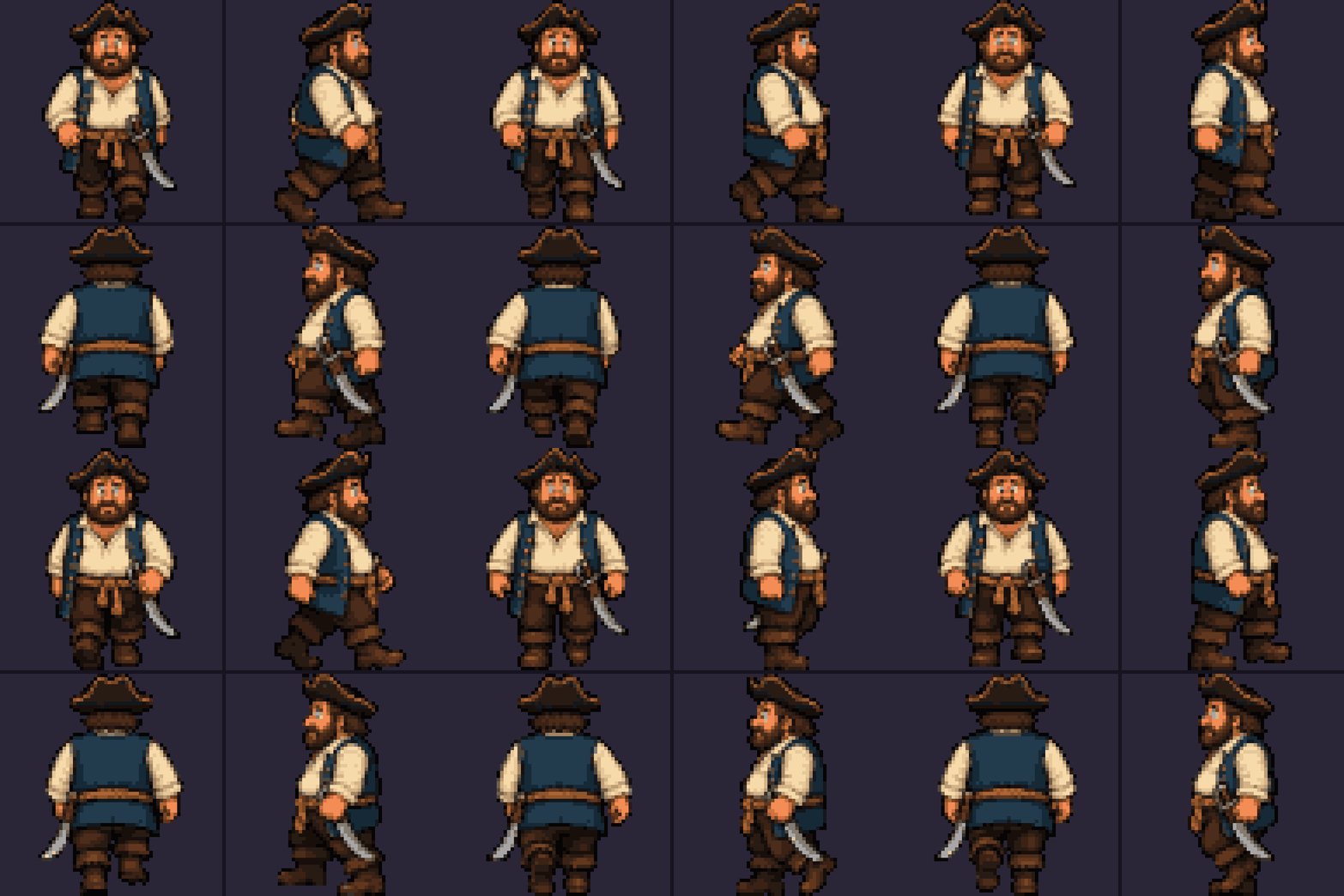
- 4 × 8 frames · 10 fps
- 32–128 px square frames
- No padding
- 1 credit from $2.99
Four directions: one strip per direction
GameMaker sprites are one animation each, so the four rows of the sheet become four sprites.
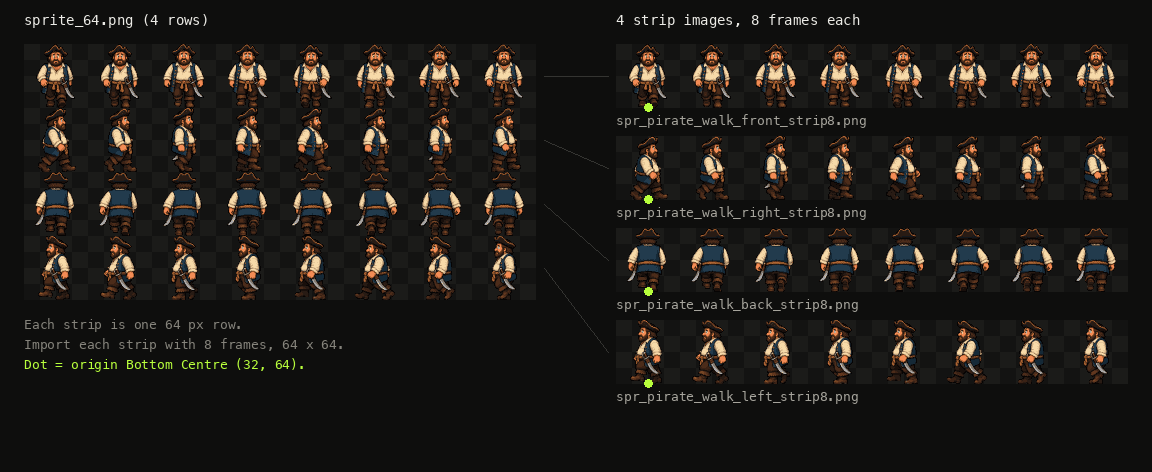
- The 4-direction ZIP holds one sheet, sprite_64.png: 4 rows × 8 frames, front, right, back, left from top to bottom. It also holds the individual frames in frames_{size}/ named front_00 … front_07, right_00 … and so on.
- GameMaker sprites are one animation each, so make one sprite per direction (for example spr_player_walk_down, _right, _up and _left).
- Cut each row of the sheet into its own 512 × 64 px strip in an image editor (the figure shows the four strips), or skip the cutting and load the 8 files of one direction with Import Image(s) in order.
- Give all four sprites the same speed (10 frames per second) and the same origin, so switching direction in code does not make the character jump or change pace.
Try it without generating anything: these four strips are the sample pirate’s walk, already cut. Your own ZIP gives you the same rows to cut the same way.




Import a strip into GameMaker
This uses GameMaker’s own strip import. Menu and window names follow the GameMaker manual; they can look slightly different between versions.
- In GameMaker, create a new sprite asset and open it in the Image Editor.
- From the image menu, choose Import Strip Image and pick one 512 × 64 strip. The Import strip window opens. It is the same window as Convert to Frames.
- Set the number of frames to 8. Set the frame width and height to the frame size, for example 64 and 64 for a 64 px strip.
- Leave any offset values at 0. Loopixel cells have no padding, offset, trimming or rotation, so nothing needs skipping.
- Confirm. The strip becomes 8 frames in the sprite’s frame view. Press play in the Image Editor to check the loop.
- Set the frame speed to 10 using “Frames per second”. That is the speed of the Loopixel preview.
- Set the origin. For a character that stands on the ground, pick the bottom centre preset from the origin drop-down in the top bar (the dot in the figure above). For a top-down game, middle centre is usually the better choice.
Repeat for the other three strips. If the import window of your GameMaker version shows more fields than the frame count, frame size and offset, use the values that describe a plain single row: nothing skipped at the edges and no gap between frames. For a single-direction animation, sprite_64.png is already one strip.
Loopixel file ↔ GameMaker setting
What to enter for each part of the ZIP.
| Loopixel | GameMaker |
|---|---|
| One 512 × 64 strip (8 frames) | Import Strip Image: 8 frames, frame size 64 × 64 |
| Frame size (32, 48, 64, 96 or 128 px) | Any works. Strip width ÷ 8 is the frame width and height |
| Padding, offset, trimming | None in the sheet, so offset values stay at 0 |
| Playback speed | 10 frames per second |
| frames_64/main_00.png … main_07.png | Optional. Load with Import Image(s) instead of slicing a strip |
| Origin | Bottom centre for ground-based characters; your choice otherwise |
Common problems
- The frames look cut off or shifted. The frame width and height do not match the strip. Divide the strip width by 8 and use that value for both.
- The animation is too fast or too slow. Check the frame speed is 10 in “Frames per second” and not “Frames per game frame”, and that nothing sets image_speed to another value in code.
- The pixels look soft in game. That comes from texture interpolation, not from the sprite. Turn it off in your game’s graphics settings (the exact name depends on the GameMaker version) and scale by whole numbers.
- The character jumps when it changes direction. The four sprites have different origins. Set the same origin on all of them.
- The sheet has a transparent background and hard edges: every pixel is fully opaque or fully transparent, so there is no halo to clean up. For a walk loop in more detail see the pixel art walk cycle guide.
What it costs
1 credit = 1 animation (one direction or a 4-direction walk). 3 credits for $2.99, paid once, never expire. See all credit packs.
GameMaker sprite sheet questions
How do I import a sprite sheet into GameMaker?
Open a sprite in the Image Editor, choose Import Strip Image from the image menu and pick the PNG. In the Import strip window set the number of frames and the frame width and height, then confirm. For a Loopixel strip that is 8 frames at the frame size, for example 64 × 64, with offset 0.
What speed should I use for a Loopixel animation in GameMaker?
Set the sprite’s frame speed to 10 using “Frames per second”. Loopixel previews and exports its animations at 10 fps, with 8 frames per loop. GameMaker uses the sprite’s speed in game too, so the loop plays at the same pace unless you change image_speed in code.
Which origin should I use?
The GameMaker manual suggests bottom centre for a platform game character, so the instance’s position is where its feet are. For top-down or isometric games the middle centre is often easier. Use the same origin on every sprite of one character.
Can I import a 4-direction sheet in one go?
The strip import window is built around a single strip of frames. For a 4-direction walk, cut the four rows into four 512 × 64 strips and import each into its own sprite, or load each direction’s 8 individual frames from the frames folder in the ZIP with Import Image(s).
Is there a GameMaker plugin or extension?
No. Loopixel does not ship a GameMaker plugin. You use GameMaker’s own Import Strip Image or Import Image(s) with the files in the ZIP.
Related tools and guides
- Image to sprite sheet
- 4-direction sprite sheet
- RPG Maker sprite generator
- PixelLab alternative
- Ludo.ai alternative
- No-subscription sprite generator
- Facts and comparison
- Godot sprite sheet
- Unity sprite sheet
- Aseprite sprite sheet
- Pixel art walk cycle
- Pixel art animation generator
- GIF to sprite sheet converter
- Sprite sheet to GIF converter
- Sprite sheet guides