Pixel Art Run Cycle: How Many Frames and What Each One Does
· 8 min read · Loopixel team
Frames and measurements from a real Loopixel run sheet; engine calls from the official docs
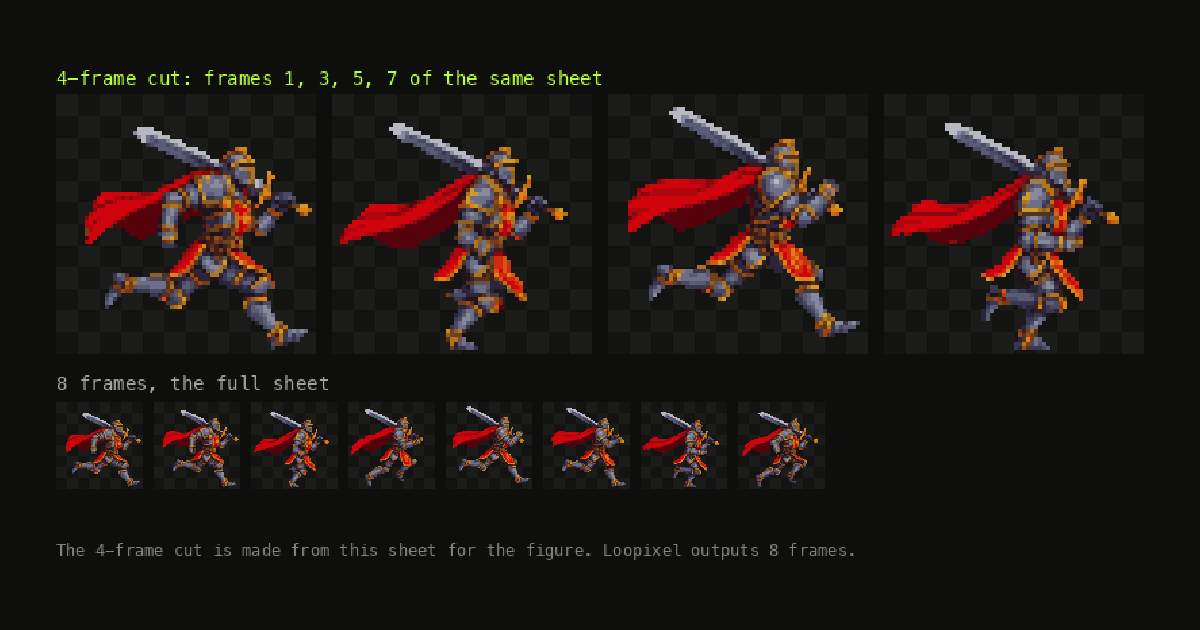
A run cycle looks like a faster walk cycle and animates like a different problem. Strides are longer, the body leans forward, the arms drive, and for a moment nothing touches the ground. This guide explains what changes from a walk, how to choose between 4, 6 and 8 frames, what each frame of a real 8-frame run does, which frame rate to try, and how to switch between walk and run in an engine without sliding feet.
On this page · 7
What changes from a walk
If you have drawn a walk cycle, you already know the structure: contact, down, passing, up. A run keeps the skeleton of that idea and exaggerates it.
| Walk | Run | |
|---|---|---|
| Feet | At least one foot is always on the ground | A moment where neither foot touches the ground |
| Body | Upright, small up and down movement | Leaning into the direction of travel, more compact in the air |
| Stride | Moderate | Longer, legs reach further front and back |
| Arms | Gentle opposite swing | Bent and driven, bigger swing; props and capes trail behind |
| Speed on screen | Slow to medium | Fast: the same frame count plays in a shorter time |
Secondary motion matters more in a run. A cape, scarf or hair that trails behind sells speed better than leg poses alone, and in a pixel sprite it costs only a few pixels per frame.
4, 6 or 8 frames
More frames give smoother motion and more work. For a platformer or an RPG that plays at game speed, the usual choices are:
| Frames | What you get | When to pick it |
|---|---|---|
| 4 | The key poses only: contact and passing on each side. Snappy, a bit stiff | Tiny sprites (16–32 px), retro look, tight budgets |
| 6 | Adds an in-between so the arc of each step is clearer | Mid-size sprites where 4 looks stiff and 8 is too much to draw |
| 8 | Contact, down, passing and up for both sides. Smooth at 10–14 fps | Hero characters, 48–128 px sprites, anything seen up close |
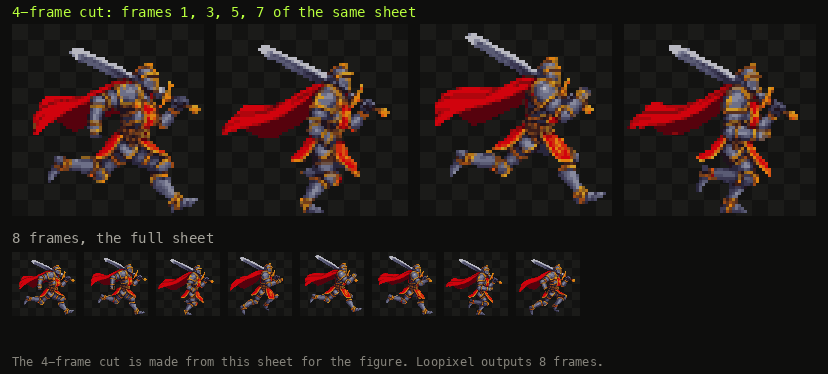
Taking every second frame is a quick way to see what a 4-frame version would keep: the extended poses and the gathered poses survive, the in-between softening does not. If your game shows the character small, the 4-frame cut may be all you need.
Frame by frame: a real 8-frame run
Here is the knight run sheet from the pixel art animation generator, an actual Loopixel output at 64 px. The description below sticks to what is visible in the frames.

| Frame | What you see | Job in the cycle |
|---|---|---|
| 1–2 | Legs far apart, cape stretched out behind, sword raised | Reach and push: the long stride |
| 3–4 | Legs gathered under the body, cape lower and flatter | Recovery: the leg swings forward |
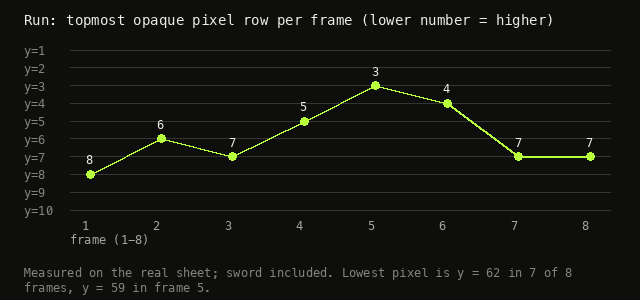
| 5 | Highest frame; the lowest pixel is 3 px above the ground row (y = 59, other frames y = 62) | The closest thing in this sheet to an airborne frame |
| 6 | Wide again, back on the ground row | Landing and reach |
| 7–8 | Gathered again; frame 8 leads back into frame 1 | Recovery, then the loop closes |
The sheet alternates two wide frames and two gathered frames, twice, so the loop has an even rhythm. Notice the cape: it changes shape in every frame, so even gathered frames do not look identical.
A generated loop can have a frame worth touching up, as with any hand-drawn one. Open the sheet in Aseprite, switch on onion skinning in the timeline to see neighbouring frames, and nudge the frame that feels off. The Aseprite guide covers importing the sheet.
Frame rate and speed
An 8-frame loop at 10 fps lasts 0.8 seconds. For a run, 10 fps is a calm jog; 12 to 14 fps usually reads as a sprint. These numbers are starting points, not rules: set the frame rate, play the loop next to your actual movement speed, and adjust until the feet stop feeling like they are skating.
- Choose the on-screen speed of your character in pixels per second.
- Play the run at 10 fps and watch the ground. If the character slides ahead of its feet, raise the fps or lower the speed.
- If the feet seem to scrub backwards against the ground, do the opposite.
- Write the final numbers down so the walk and run share one speed table. The walk cycle frame rate guide shows the same method for a walk.
Switch walk and run in the engine
Keep the walk and the run as two animations on the same character, and switch between them from the code that already knows the speed. Loopixel sheets are 1 row of 8 frames at 64 px (or another size), so the slicing is the same as for any other action; see the Godot and Unity guides.
Godot 4
- Put
walkandrunas two animations in the sameSpriteFrameson oneAnimatedSprite2D, each at its own Speed (FPS). - From the movement script, call
play("run")when speed passes your threshold andplay("walk")below it.playtakes the animation name and an optionalcustom_speed. - For a smooth ramp, scale
speed_scalewith movement speed instead of adding more animations.
Unity
- Create one clip for walk and one for run, with each clip’s frame rate set to your chosen value (
AnimationClip.frameRate). - Add both to an Animator controller and switch with a parameter, for example
Animator.SetBoolfrom a script. - To tune speed without editing the clip, change
Animator.speed.
Common mistakes
- Foot sliding. Animation speed and movement speed do not match. Retune the fps or the speed, not the art.
- Too much bounce. The whole body moving many pixels up and down makes the loop look like hopping. In the real sheet above the topmost point moves within 5 rows on a 64 px frame, and the cape and sword account for part of it.
- Floating baseline. Frames drawn at different heights make the sprite jitter. Keep the ground row the same, and let only the airborne frame lift off it. The slicing guide shows how to set the pivot at the feet.
- Run is a fast walk. Without the lean and the airborne beat, a faster walk looks like a sped-up video. Check the silhouette, not just the speed.
- Loop seam. Frame 8 must lead into frame 1. Play the loop 10 times and watch the seam, not the middle.
Quick answers
Do I need a different sprite size for running?
No. Use the same frame size as your walk and idle so the pivot and the pixels per unit match. A bigger swing just needs the cell to leave room for the cape and arms.
Can I make a run in all four directions?
Loopixel’s 4-direction mode makes a walk cycle only; other actions, including run, are single-direction. See the 4-direction sprite sheet page for what you get.
I have a GIF of a run. Can I turn it into a sheet?
Yes, with the GIF to sprite sheet tool, and the other way round with sprite sheet to GIF.
Sources
Engine menu paths and property names above were checked against the official documentation:
- Godot: AnimatedSprite2D
- Godot: SpriteFrames
- Unity: Animator.speed
- Unity: Animator.SetBool
- Unity: AnimationClip.frameRate
- Aseprite: Timeline (onion skinning)
- Aseprite: Tags
Try it with one image
Upload one image and get an 8-frame pixel sprite sheet in about a minute. 1 credit per animation, credit packs from $2.99, paid once.
Create a sprite sheet